
Inside BOM42
From a source BOM to a purchasing decision
See how BOM42 turns a source BOM into checked parts, comparable supplier offers, purchasing documents, and delivery reconciliation.
Start with a BOM. Finish with a purchasing decision.
An electronics bill of materials describes a design. Buying that design requires more decisions: which exact parts to source, how many to buy, which supplier offers meet the requirement, and what to hand over to the person placing the order. BOM42 keeps that work in one project.
Bring a BOM from engineering, your build quantity, and any supplier quotations you already have. Work through part identity, demand, and offers, then prepare purchasing documents and reconcile what was received against the plan.
What you bring
- Part numbers or descriptions and quantities.
- A clear quantity basis: per board or final line totals.
- Supplier offers and your delivery requirements.
What you prepare
- Reviewed part identities and purchasing quantities.
- Comparable offers and recorded selections.
- A purchasing handoff and delivery reconciliation.
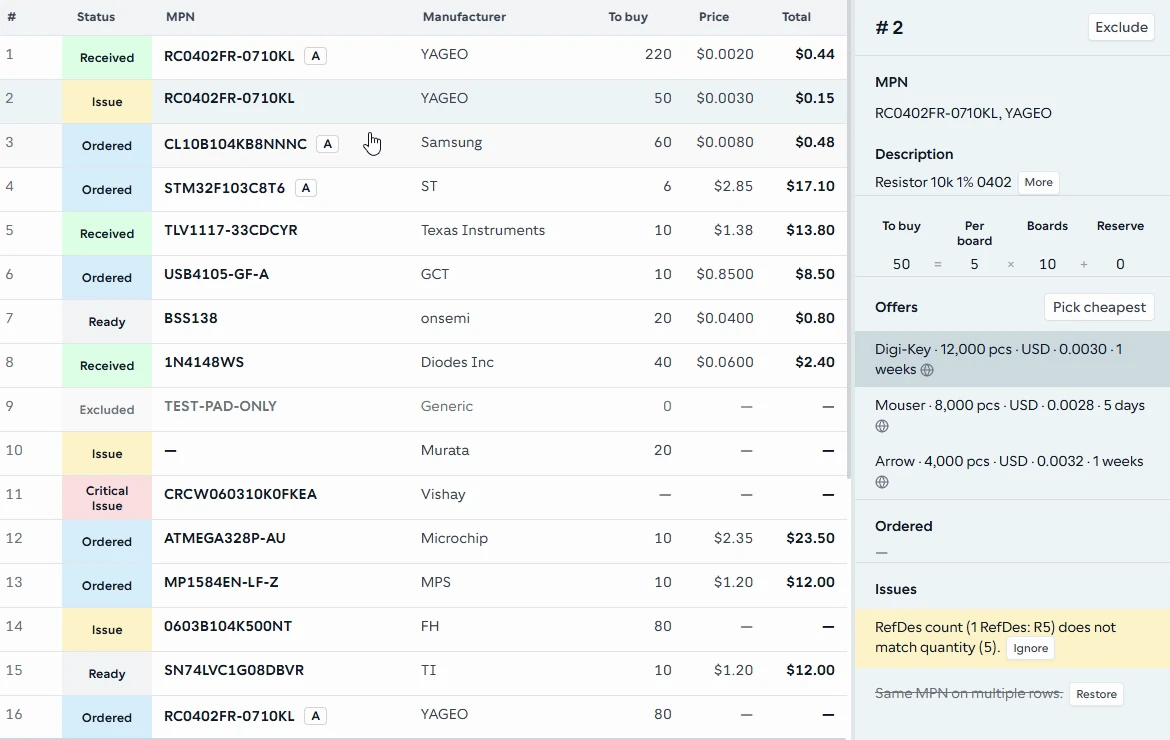
The BOM table keeps part identity, quantities, and supplier offers beside the selected line’s issues.
From the BOM42 product walkthrough. Example data; displayed prices and availability are illustrative. Open the image to inspect it at full size.
The workflow, from first import to received quantities
1. Import and review the source table
Select the relevant table and map its columns to BOM fields. Check the preview before choosing Apply. A quantity column is only useful when everyone agrees whether it means parts per board or parts for the whole build.
Result: a confirmed set of BOM rows to work on.
2. Check part numbers and demand
Use MPN to review part identities and duplicate lines. In QTY, set the build basis, reserves, and quantities to buy. Mark do-not-populate lines appropriately. Review Issues to understand unresolved findings before relying on a quote.
Result: a sourcing requirement that represents the intended build.
3. Collect offers and review alternatives
Quote brings supplier offers into the project, including reviewed uploaded quotations. Compare the exact part, available quantity, price, and supplier conditions. Choose a line’s offer in its row inspector. When the specified part is unsuitable or unavailable, use Alternatives to review candidates and record your decision.
Result: an explicit supplier choice, with unresolved lines still visible.
4. Prepare the purchasing handoff
Review a proposal in Export. Use Orders to set supplier scope, purchasing scenarios, and allocations, and prepare purchase-order output. Supplier invoices provide evidence to reconcile with those decisions. The buyer still places orders through the supplier’s process.
Result: purchasing documents based on reviewed project decisions.
5. Reconcile deliveries
Use Deliveries to compare packing-list evidence and received quantities with the purchasing plan. Record the reviewed result so shortages and differences can be followed up with the supplier.
Result: a record of what was received against the planned purchase.
You review the decisions that matter
Importing a supplier file is not the same as accepting its contents. File mapping and upload previews remain separate until you apply them. A supplier quotation is evidence for a decision; it does not silently become a purchase order.
Work with your current stage, then revisit another when a requirement changes. The stage indicators describe the state of the project. You do not need to complete Orders or Deliveries to prepare a proposal.
Where BOM42 fits in your purchasing process
BOM42 prepares BOMs, compares offers, records purchasing decisions, prepares handoffs, and reconciles deliveries. Supplier orders, payments, accounting, fulfillment, and inventory remain in the systems and relationships you already use for those responsibilities.
That makes the project useful both before an order and when checking its outcome: the requirement, offer selection, and received quantities can be reviewed together without treating a supplier document as the only record of what you intended to buy.
Before your first project
- Do I need a finished, perfectly clean BOM?
- You can start with rows that need review. For an active import line, provide a positive quantity and either a part number or a useful description. Resolve identity gaps before choosing a supplier offer. The BOM preparation guide explains the fields and checks.
- Can I bring quotations I already received?
- Yes. Review and apply supplier offers in Quote, then compare them on the same demand basis. See the worked supplier comparison for an example where the lowest unit price costs more overall.
- Can I explore before importing a real project?
- Open BOM42 and choose a sample BOM. Signing in is required to use the purchasing workspace.
Put your BOM into a purchasing plan
Open BOM42 to start with your own file or choose a sample BOM. Sign in to use the purchasing workspace.
Open BOM42