
Inside BOM42
Turn a checked BOM into a clear request for quotation
Prepare component demand, request supplier quotes, review responses, and keep purchasing decisions connected to BOM lines in BOM42.
Turn confirmed BOM demand into a clear price request
An electronics RFQ needs to tell a supplier exactly what to quote: the manufacturer part number, manufacturer, required quantity, and any context that helps identify the line. Starting from an unreviewed engineering spreadsheet can leave the supplier guessing whether a quantity means one board or the whole build.
BOM42 prepares an RFQ from your current BOM and purchasing quantities. You send the workbook through your usual email or supplier portal, then bring the response back into the same project for review. This workflow complements the live component-offer search when you also need a quotation from an existing supplier.
Check the request before asking for prices
Import the BOM, review part identities in MPN, and confirm purchasing quantities in QTY. Choose whether source quantities are per board or final line quantities, set the build quantity where needed, and review reserves and excluded parts. Resolve missing part or quantity information before sending the RFQ.
Use the BOM preparation checklist to check the input columns and quantity interpretation before generating your request.
In Quote, choose Download RFQ. The XLSX contains an RFQ Details sheet and an RFQ Line Items sheet. It carries the project reference and available buyer details, requested MPNs and manufacturers, descriptions, required quantities, units, and reference designators. Price fields are left for the supplier to complete.
- Requested and quoted part numbers have separate columns, so a proposed substitution can be reviewed.
- Response columns cover quoted quantity, unit price, currency, MOQ, SPQ, stock, and lead time.
- The workbook also has fields for quotation validity, delivery information, terms, and notes.
Complete any additional commercial instructions in the workbook before sending it. Downloading an RFQ prepares the request; it does not send an email or contact the supplier.
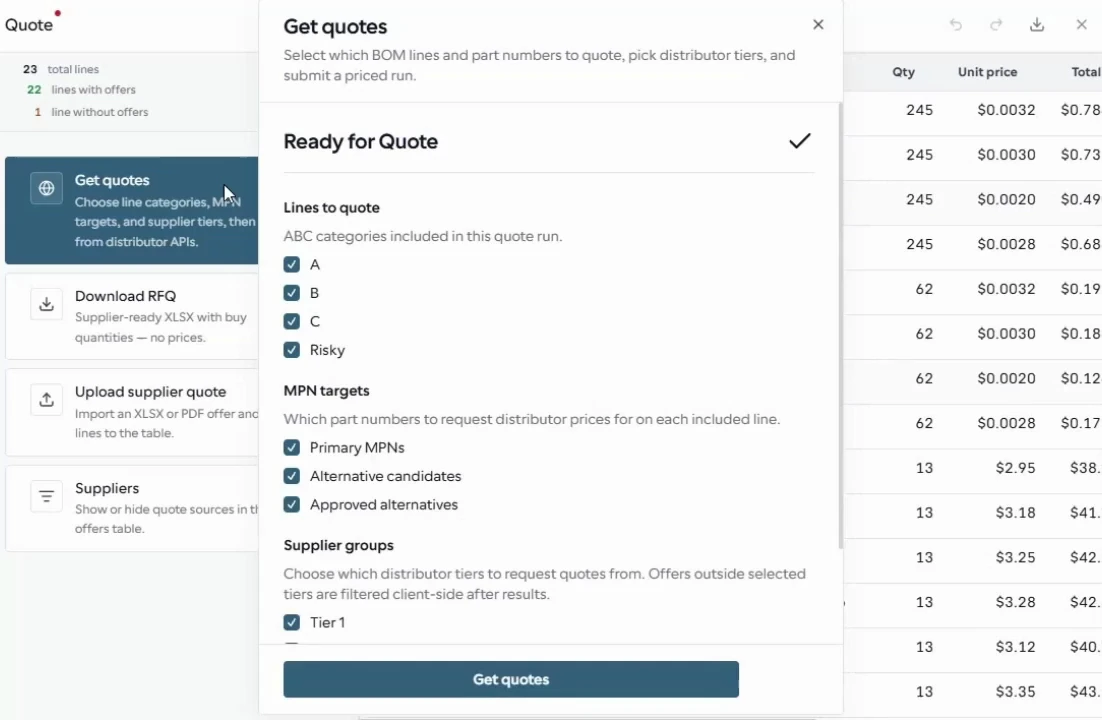
Download RFQ and Upload supplier quote are actions in the Quote workspace. The open dialog shown here configures a live-offer search.
From the BOM42 product walkthrough. Example data; displayed prices and availability are illustrative. Open the image to inspect it at full size.
Review supplier responses before adding their offers
- Name the supplier. Choose Upload supplier quote in Quote and identify who provided the response.
- Upload the quotation. Use a spreadsheet or a PDF with extractable table text.
- Review the mapping. Check the part identity, quantity, unit price, currency, and other available offer fields. A supplier's column headings may differ from the RFQ template.
- Check the matched lines and apply. Imported data stays in a preview until you choose to add the reviewed offers to the project.
- Compare and select. Inspect the resulting offers and make each BOM line's offer selection in the row inspector.
Example: a quotation for a 200-board build
A connector appears twice on each board. For a build of 200 boards with no reserve, you confirm a demand of 400 connectors and export the RFQ. The supplier returns a price for 500 pieces because that is their minimum order quantity.
Keep the required quantity and the offered terms distinct during import. Review the quoted MPN, price, currency, and MOQ before applying the offer, then compare it with other available sources. A low unit price alone does not explain the cost of buying more pieces than the build requires. The supplier response becomes evidence for your choice rather than silently redefining the BOM's demand.
Carry the reviewed quote into the purchasing plan
The output is a consistent RFQ workbook and supplier offers attached to the relevant BOM lines. Once you have selected offers, Orders handles supplier scope, allocations, and PO preparation. Sending the request, negotiating terms, placing orders, and paying suppliers remain part of your own purchasing process.
Learn how project supplier management keeps supplier evidence connected across stages, or see how the BOM workspace preserves confirmed work for your next session.
Put your BOM into a purchasing plan
Open BOM42 to start with your own file or choose a sample BOM. Sign in to use the purchasing workspace.
Open BOM42