
Inside BOM42
Compare component offers with the whole buying decision in view
Compare electronic component offers across suppliers, review quantities and availability, and evaluate alternatives before recording a purchasing decision.
Compare component offers against the BOM you need to buy
Electronic component sourcing is a line-by-line decision. The lowest displayed price may have insufficient stock, a minimum order that exceeds your demand, or a part number that still needs engineering approval. A useful comparison keeps those details next to the BOM line and the quantity you actually need.
BOM42 combines collected distributor offers and imported supplier quotations in one project. You can investigate the available sources, review alternatives, and record the chosen offer without maintaining separate pricing sheets for each source.
Start with part identity and purchasing quantity
Import your BOM and confirm manufacturer part numbers, manufacturers, and quantities. Review duplicate part entries and issues before relying on a pricing result. In QTY, distinguish a quantity per board from a final line quantity and confirm the To buy value. These inputs determine what an offer needs to cover.
In Quote, choose the lines and part-number targets to check. Targets can include primary MPNs, alternative candidates, and approved alternatives. Supplier-group settings control which collected offers appear in the results. Available sources and the results returned depend on the part, provider response, and your account access.
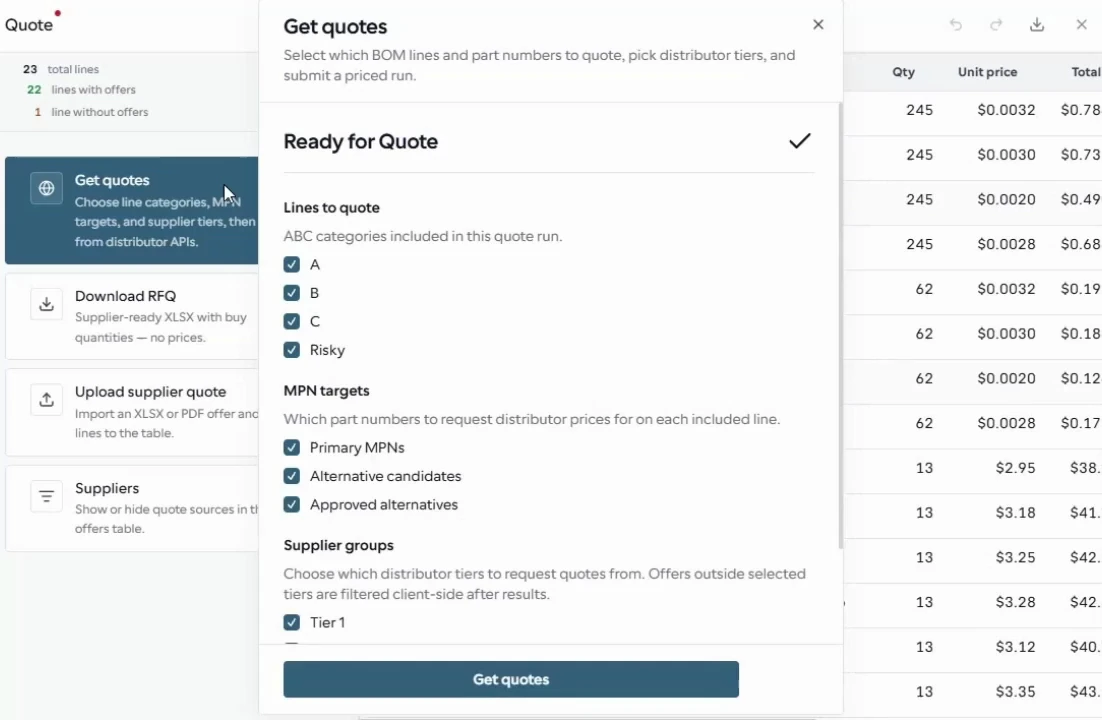
Set the part categories, primary or alternative part-number targets, and supplier groups for the quote comparison.
From the BOM42 product walkthrough. Example data; displayed prices and availability are illustrative. Open the image to inspect it at full size.
Collect, compare, and make an explicit selection
- Run Get quotes. BOM42 collects offers for the requested parts and shows results as they become available.
- Add existing supplier quotations. Import a reviewed response to an RFQ when the purchasing decision also depends on a direct supplier relationship.
- Review the comparison. Check supplier, offered MPN, unit price, currency, stock, lead time, and minimum order details where reported.
- Investigate alternatives. Review candidate parts and record approval or rejection; a candidate search result is not engineering approval.
- Select in the row inspector. Record the offer for the BOM line, then review supplier allocations and purchasing scenarios in Orders.
Missing stock or lead-time data remains a question to resolve. A returned offer is useful evidence for planning, but availability and commercial terms still need confirmation with the supplier before an order is placed.
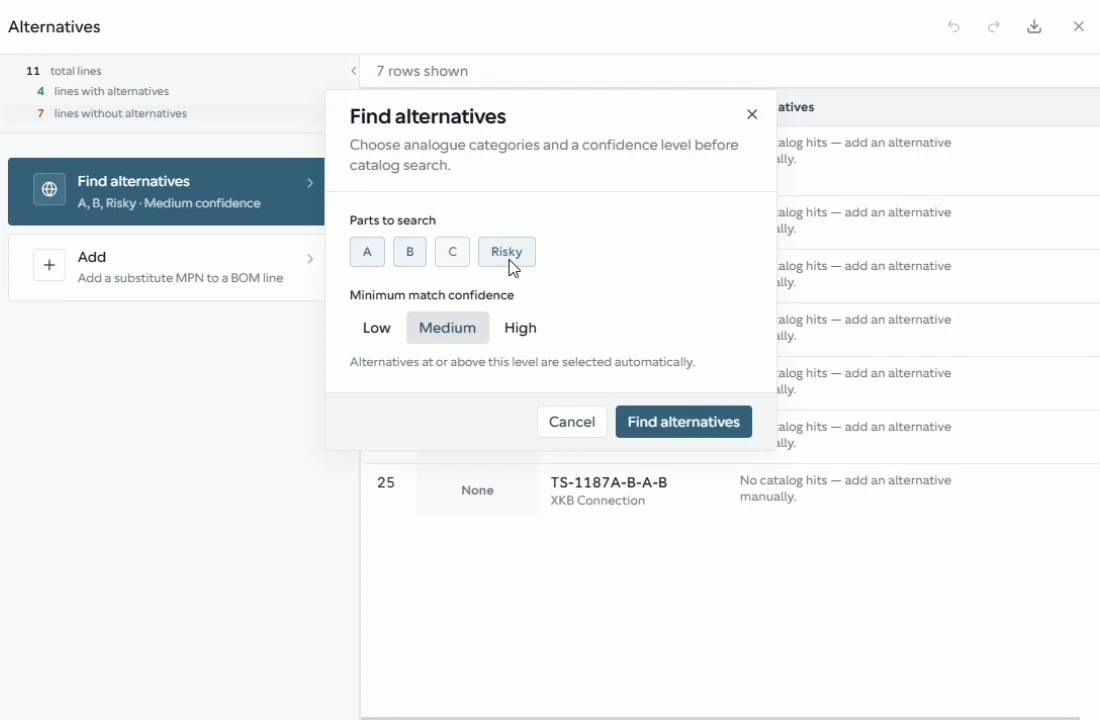
Choose the categories and confidence settings for an alternative search, then review the returned candidates against your design requirements.
From the BOM42 product walkthrough. Example data; displayed prices and availability are illustrative. Open the image to inspect it at full size.
Example: why the cheapest unit price may not fit
Consider a BOM line requiring 300 pieces of the same confirmed MPN. The following is an illustrative comparison, not live supplier pricing. All prices use the same currency and exclude shipping and taxes.
| Offer | Unit price | Stock | MOQ | What to review |
|---|---|---|---|---|
| Supplier A | $0.80 | 1,000 | 1,000 | Requires more than the build needs |
| Supplier B | $1.00 | 400 | 1 | Reported stock covers the requirement |
| Supplier C | $0.90 | 100 | 1 | Availability covers only part of the demand |
Supplier A has the lowest unit price, but its stated minimum means $800 of components. Supplier B can cover 300 pieces for $300 on the reported terms. Supplier C needs a stock or lead-time follow-up. The comparison gives you a reason for the selection that can travel with the purchasing work.
For a step-by-step method that includes order multiples and delivery timing, read how to compare supplier quotations.
A purchasing decision your team can use
Once offers are selected, BOM42 can prepare priced proposal output. Orders lets you review the trade-off between lower cost and fewer suppliers, confirm allocations, and prepare supplier PO workbooks. Purchasing decisions stay attached to the project when you save or download it.
See how supplier management connects that decision to supplier documents, and how the BOM workspace keeps preparation, comparison, and handoff together.
Put your BOM into a purchasing plan
Open BOM42 to start with your own file or choose a sample BOM. Sign in to use the purchasing workspace.
Open BOM42